mirror of
https://github.com/vcmi/vcmi.git
synced 2026-07-01 11:50:02 +07:00
1
Map editor Working with mods
Nordsoft91 edited this page 2022-12-22 21:10:20 +04:00
Enabling and disabling mods
The mods mechanism used in map editor is the same as in game.
To enable or disable mods
- Start launcher, activate or deactivate mods you want
- Close launcher
- Run map editor
There is no button to start map editor directly from launcher, however you may use this approach to control active mods from any version of vcmi.
Placing objects from mods
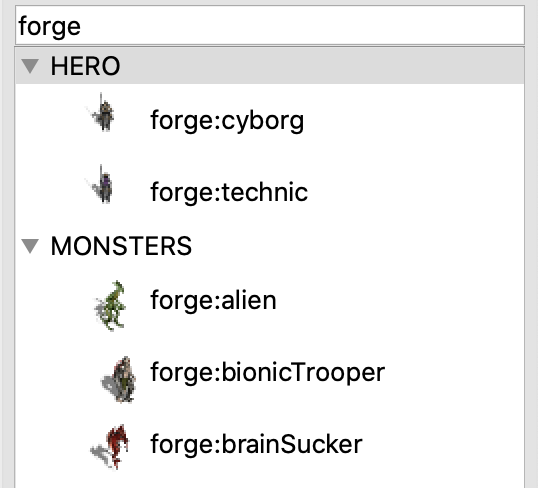
- All objects from mods will be automatically added into objects Browser. You can type mod name into filter field to find them.
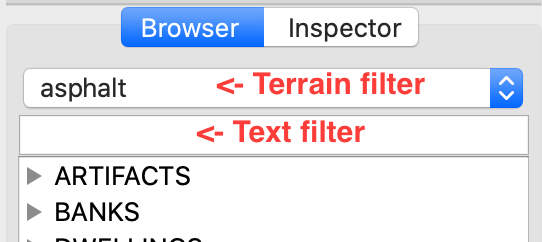
- Objects from mods related to new terrains (if mod adds any) should not be filtered this way, instead choose terrain from terrains filter on the top of objects browser
Playing maps with mods
If you place any kind of objects from the mods, obviously, you need those mods to be installed to play the map. Also, you need to activate them.
You also may have other mods being activated in addition to what was used during map designing.
Mod versions
In the future, the will be support of mods versioning so map will contain information about mods used and game can automatically search and activate required mods or let user know which are required. However, it's not implemented yet